Verify UFM Telemetry
This page provides verification steps for the UFM telemetry data flow to VictoriaMetrics and VictoriaLogs.
Prerequisites
- The Configure UFM Telemetry procedure is complete.
- The service Kubernetes cluster is running with telemetry pods deployed.
Verify UFM Telemetry Pods
-
Verify that the VictoriaMetrics pods are running:
Run on K8s control planekubectl get pods -n telemetry -o wide | grep vm
-
Verify that the VictoriaMetrics service is running:
Run on K8s control planekubectl get service -n telemetry -o wide | grep vm
-
Verify VMagent logs for UFM scraping to view recent logs:
Run on K8s control planeVMAGENT_POD=$(kubectl get pods -n telemetry -l app.kubernetes.io/name=vmagent -o jsonpath='{.items[0].metadata.name}') kubectl logs $VMAGENT_POD -n telemetry -c vmagent --tail=50
View UFM Metrics in VictoriaMetrics UI (VMUI)
Use the VMUI to validate that UFM telemetry data is being collected.
-
Note the External IP and port number of the VictoriaMetrics service:
Run on K8s control planekubectl get svc -n telemetry | grep vmselect
-
Access the VMUI in a web browser:
https://<external vmselect loadbalancer IP>:8481/select/vmui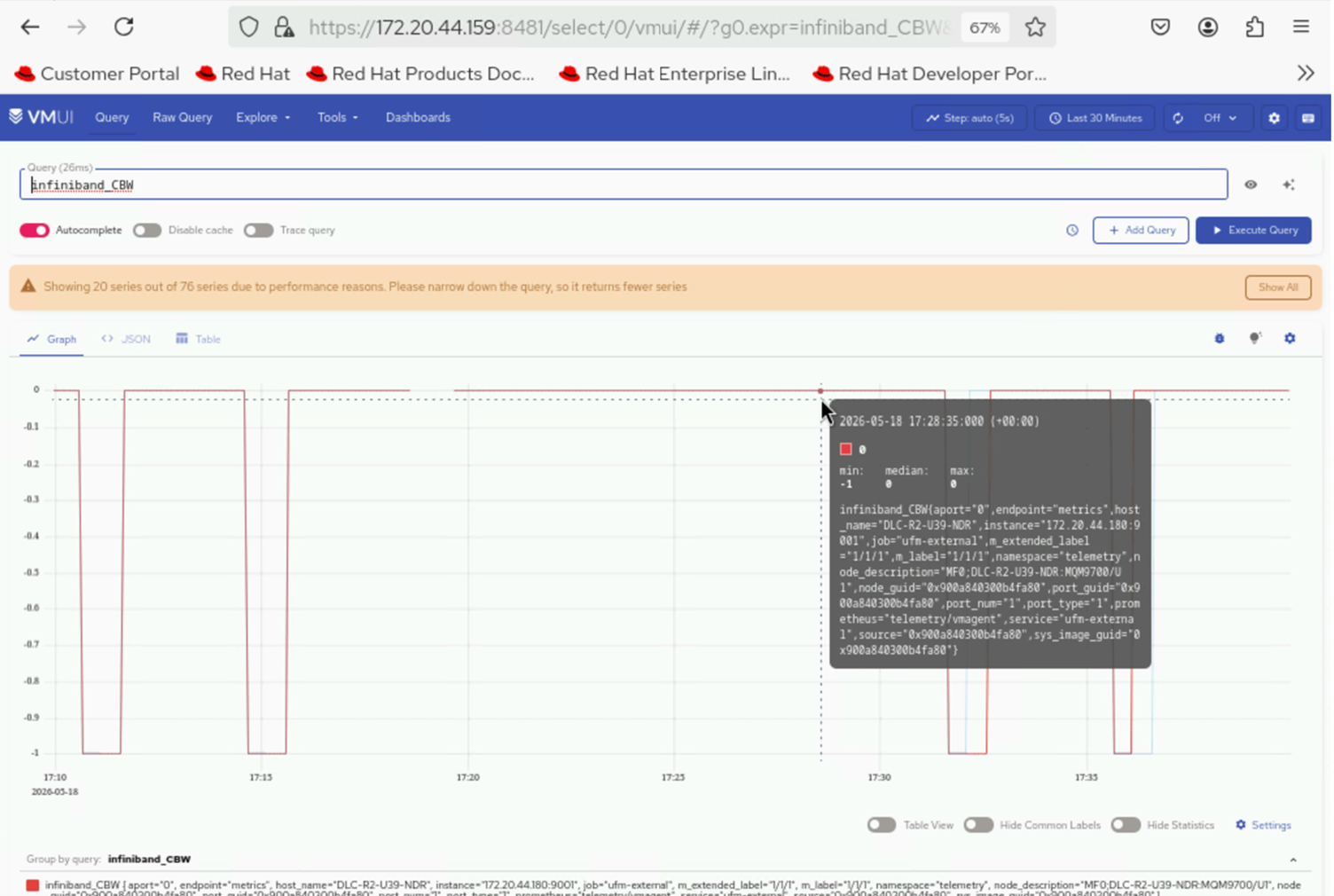
-
Filter and view UFM InfiniBand metrics using queries in VMUI. For example:
{source="ufm", subsystem="infiniband"}
View UFM Logs in VictoriaLogs
-
Retrieve the VLAgent LoadBalancer IP and configure it on the UFM appliance:
Run on K8s control planekubectl get svc -n telemetry | grep -E "(vlagent|victoria-logs)"
-
Retrieve the external IP and port of the vlselect service:
Run on K8s control planekubectl get svc -n telemetry | grep vlselect
-
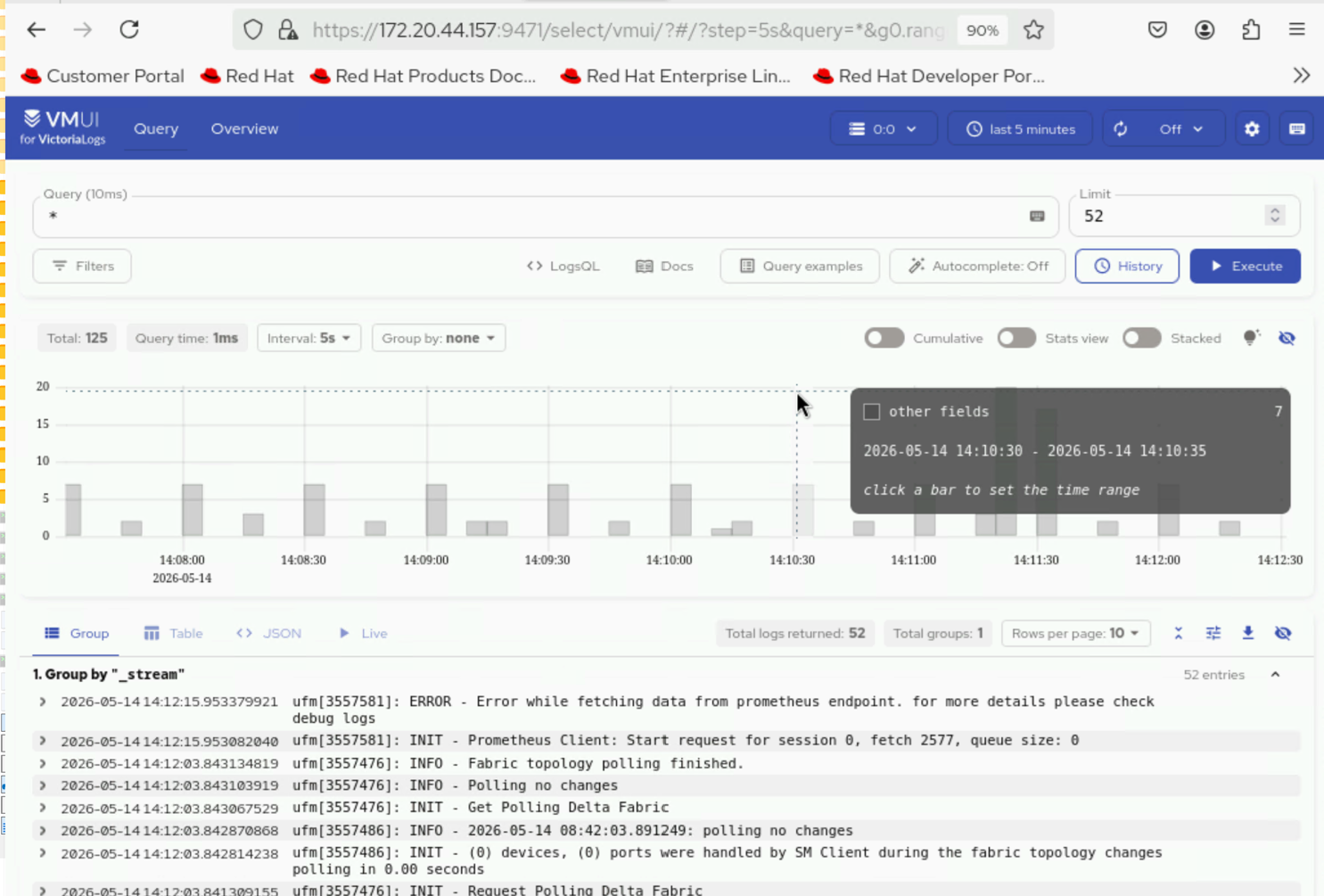
Access the VictoriaLogs UI in a web browser:
https://<external vlselect loadbalancer IP>:9471/select/0/vmui