Perform Cleanup Operations
BuildStreaM supports a maximum of 50 build images. When the build image count exceeds this limit, you must manually perform cleanup operations to remove old images before creating new ones.
Warning
Do not cancel a running GitLab pipeline or stage. Cancellation prevents some pipeline steps from executing, which leaves the BuildStreaM job in an intermediate, inconsistent state.
Prerequisites
- Administrative access to the OIM
- BuildStreaM API server is running
- PostgreSQL database is accessible
Procedure
-
Navigate to the GitLab project URL:
GitLab project URLhttps://<gitlab_host>:<gitlab_https_port>/root/<gitlab_project_name> -
Navigate to Build → Pipelines.
-
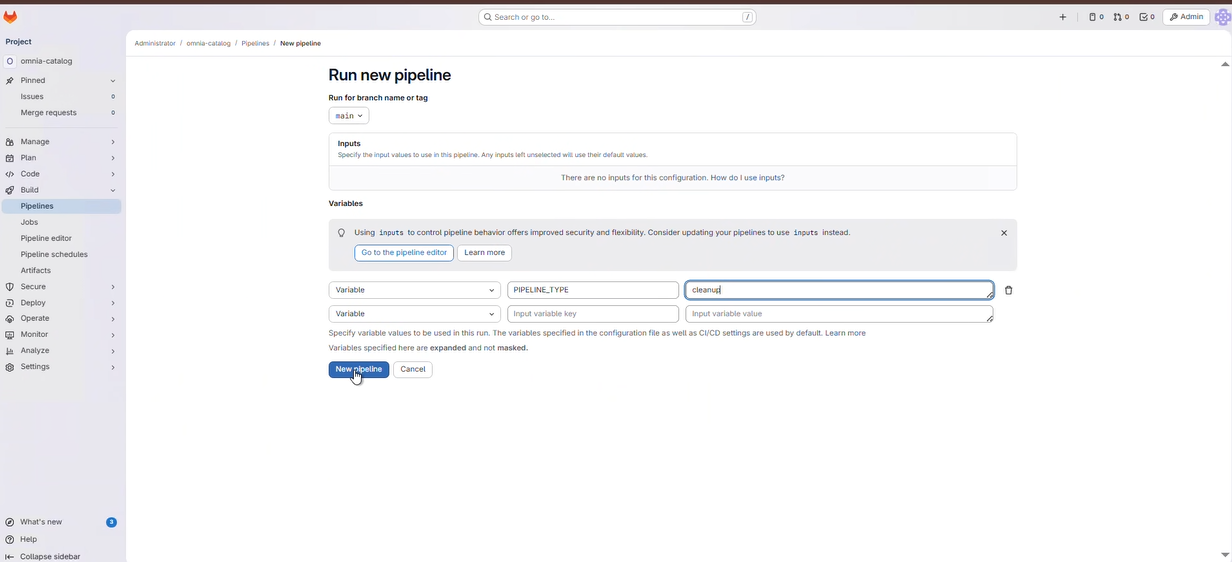
Click New Pipeline.
-
In the Run new pipeline dialog box, enter the variable name as PIPELINE_TYPE and enter the value as cleanup.
-
Click Run Pipeline to execute the cleanup pipeline.
-
In the pipeline, select the image to be cleaned up from the
select_imagestage.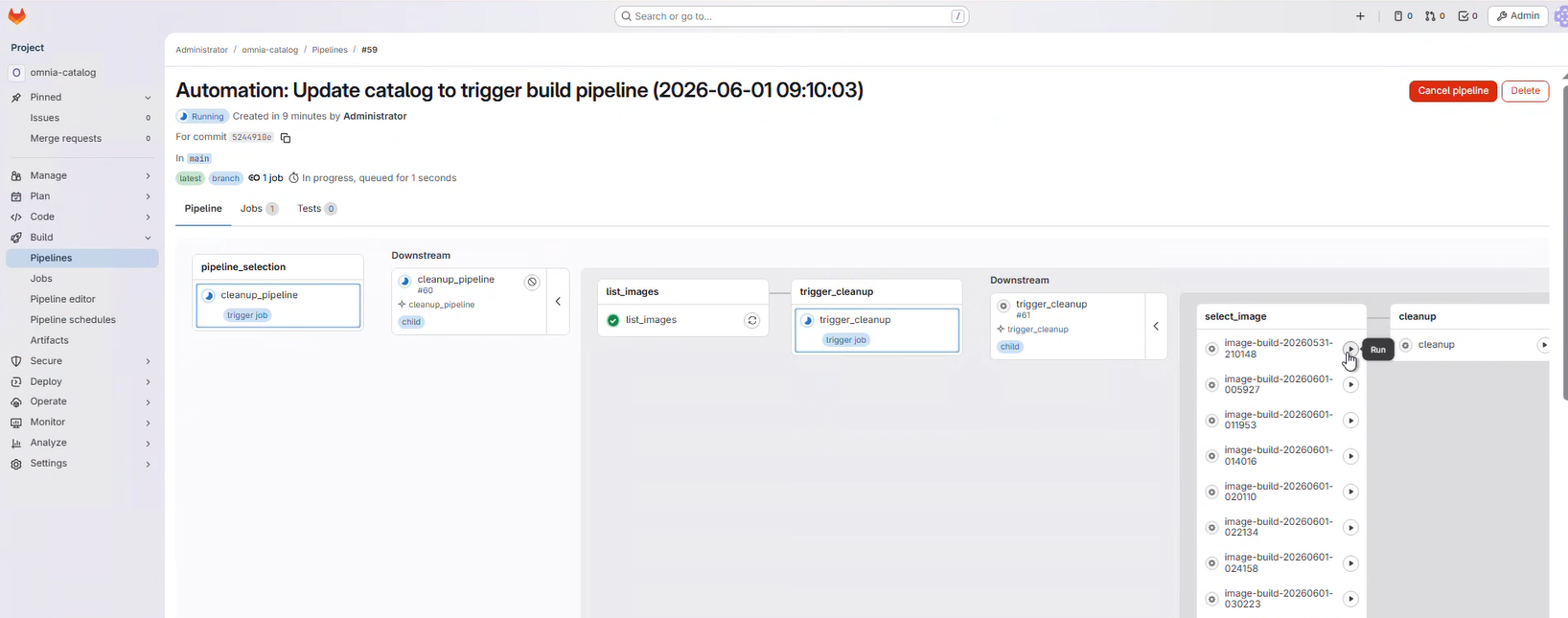
-
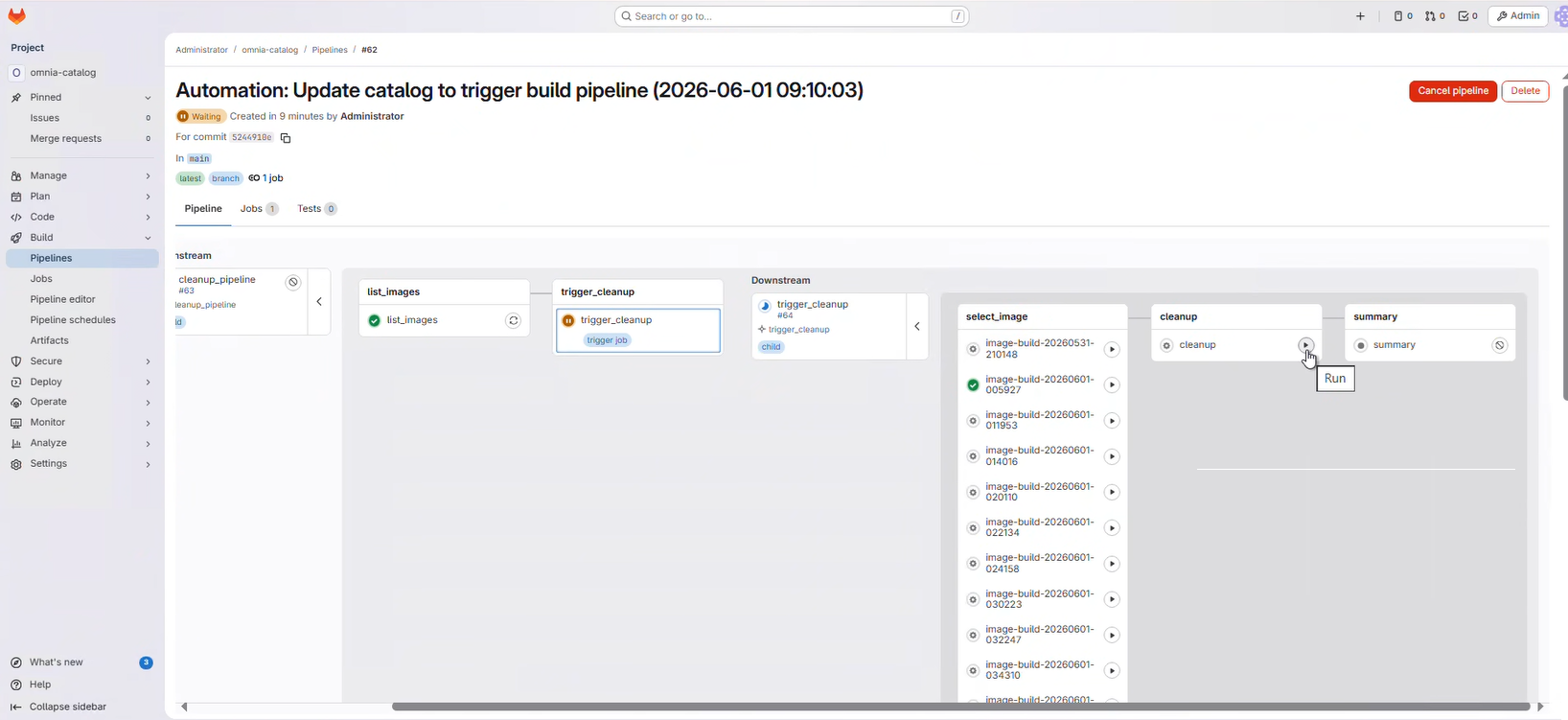
Click the Play button on the cleanup stage to execute the cleanup.
-
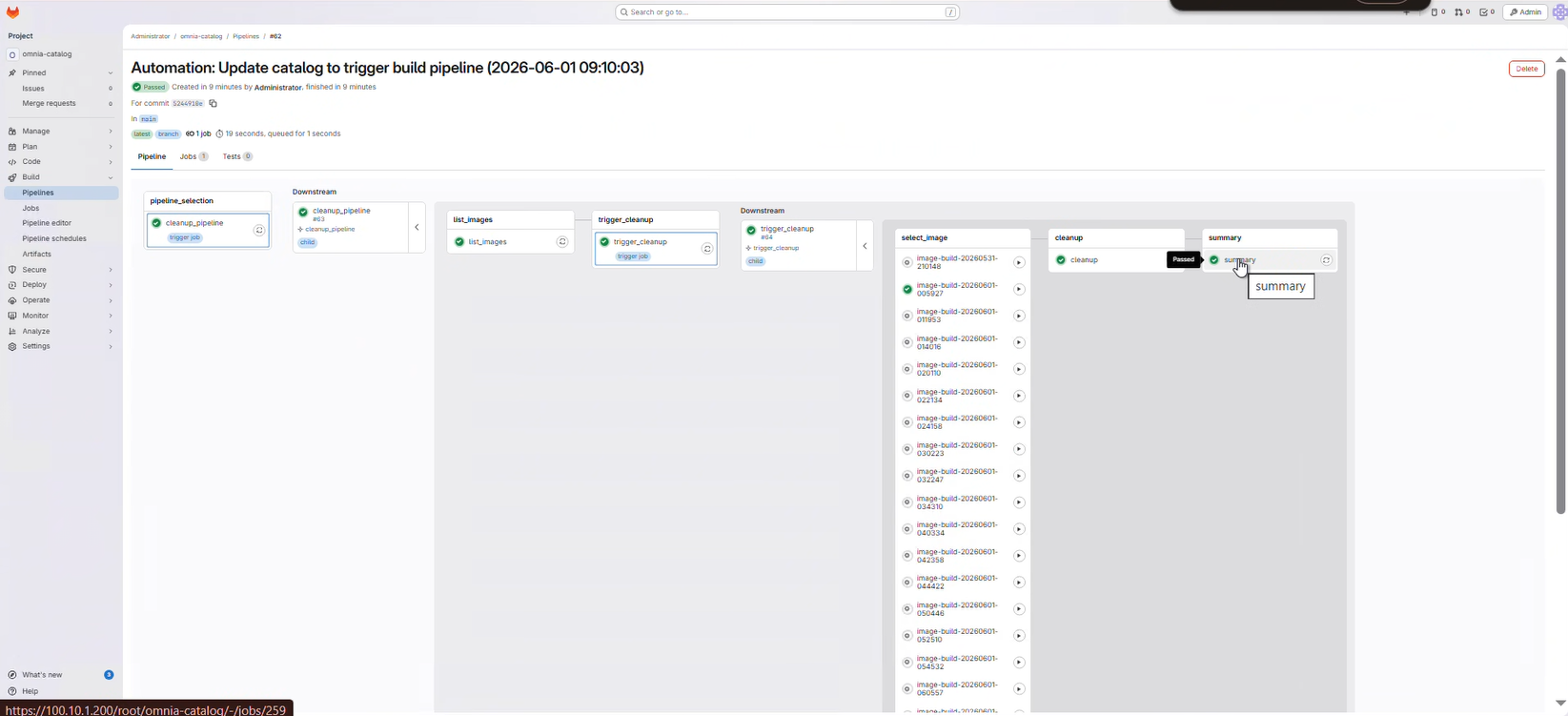
Monitor the pipeline progress through the GitLab web interface:
- Click on the running pipeline to view details.
- Monitor the cleanup stage as it progresses to completion.
-
Review the stage status indicators:
- Green checkmark: Stage completed successfully
- Red X: Stage failed (click for error details)
- Blue circle: Stage currently running
Verification
-
Check the GitLab pipeline status to ensure the cleanup stage passed.
-
Verify the Image Group count is within the configured retention limit.
-
Review the cleanup pipeline logs in GitLab for specific details about which Image Groups were removed.
Next Steps
- Retry Pipelines -- Retry failed pipeline operations
- Execute Build Pipeline -- Create new images after cleanup
Troubleshooting
- Cleanup pipeline failing: Verify that the BuildStreaM API server and PostgreSQL database are running. See BuildStreaM Troubleshooting.