Verify PowerScale Telemetry Flow
This section outlines the steps to verify PowerScale telemetry data in VictoriaMetrics.
View Collected PowerScale Telemetry Data using VictoriaMetrics UI (VMUI) - Cluster Mode Deployment
After applying the telemetry.yml configuration using the VictoriaMetrics deployment mode as cluster,
use the (VMUI) to validate that PowerScale telemetry data is being collected and stored
successfully in a cluster mode VictoriaMetrics deployment. For more details, see
VictoriaMetrics Cluster deployment documentation.
Run the following command to verify that the VictoriaMetrics pod is running:
kubectl get pods -n telemetry -o wide | grep vm

Run the following command to verify that the VictoriaMetrics service is running:
kubectl get service -n telemetry -o wide | grep vm

Note the External IP and port number of the VictoriaMetrics service. The external IP and port number will be used to access the VictoriaMetrics UI (VMUI).
Access the VMUI in a web browser using:
https://<external vmselect loadbalancer IP>:8481/select/0/vmui
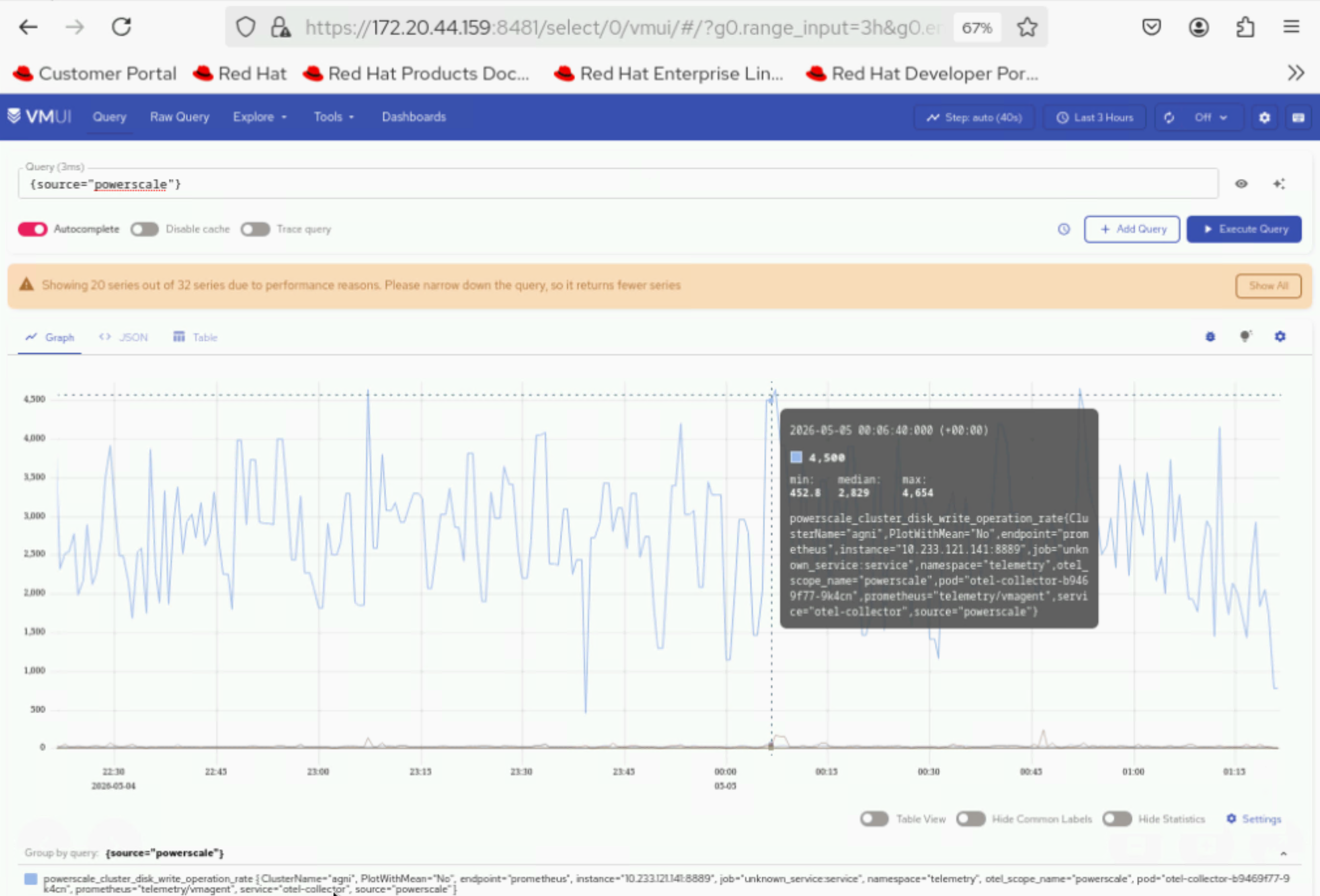
6. Filter and view telemetry metrics using queries in VMUI. For example, the following query displays detailed PowerScale metrics for each hardware component:
{__name__=~"powerscale"}
View Collected PowerScale Logs using VictoriaLogs UI - Cluster Mode Deployment
After applying the telemetry.yml configuration using the VictoriaLogs deployment mode as cluster,
use the VictoriaLogs UI to validate that PowerScale log data is being collected and stored
successfully in a cluster mode VictoriaLogs deployment.
Run the following command to verify that the VictoriaLogs pods are running:
kubectl get pods -n telemetry -o wide | grep vl

Run the following command to verify that the VictoriaLogs service is running:
kubectl get service -n telemetry -o wide | grep vl

Note the External IP and port number of the VictoriaLogs service. The external IP and port number will be used to access the VictoriaLogs UI.
Access the VictoriaLogs UI in a web browser using:
https://<external vlselect loadbalancer IP>:9471/select/vmui
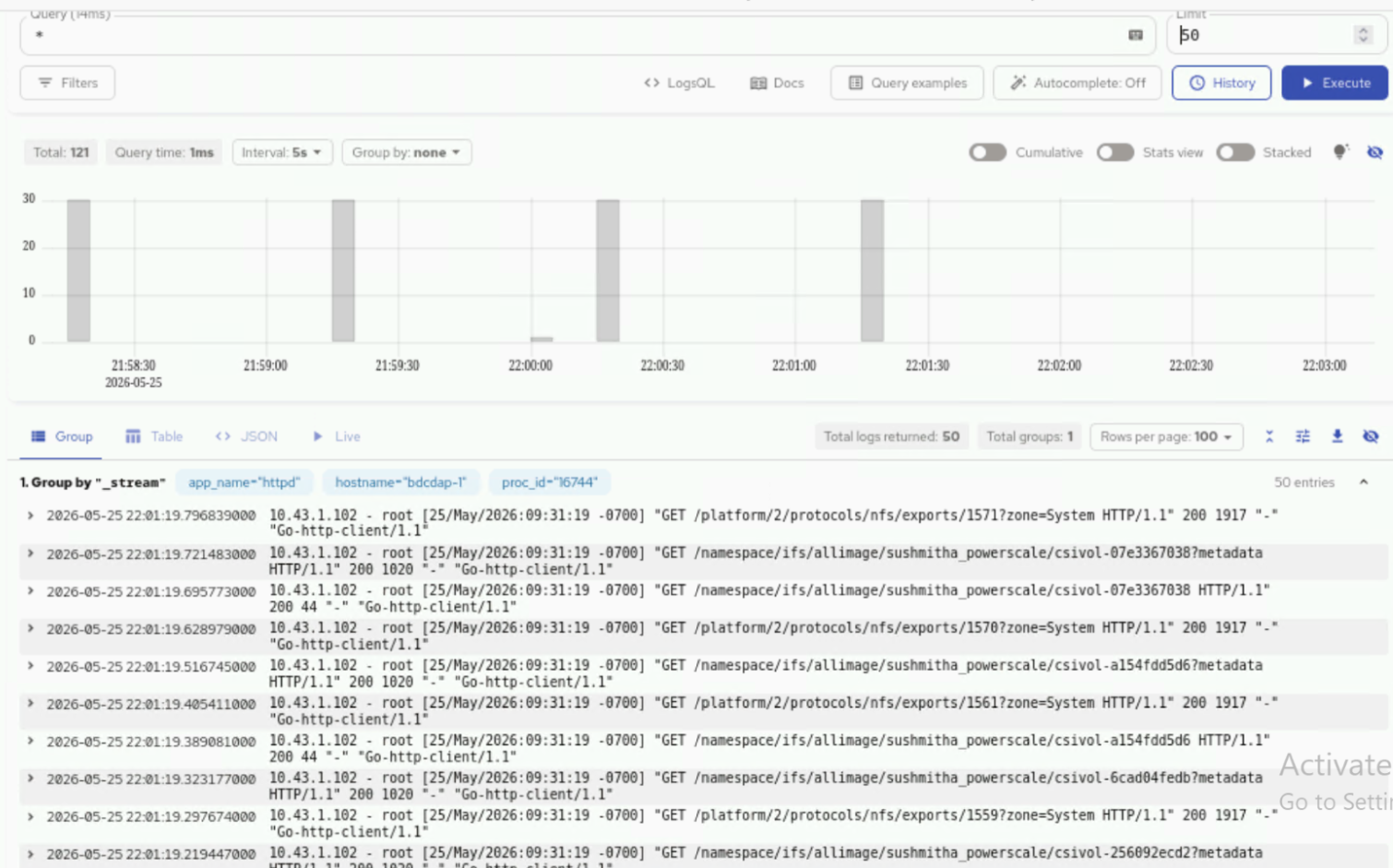
6. Filter and view PowerScale logs using queries in VictoriaLogs UI.
For example, use the * query to display all logs.
If you have any feedback about Omnia documentation, please reach out at omnia.readme@dell.com.