Step 5: Prepare the OIM
The prepare_oim.yml playbook is used to prepare the Omnia Infrastructure Manager (OIM). The playbook performs the following on the OIM:
Sets up the OpenCHAMI containers.
Sets up the BuildStreamM container if BuildStreaM is enabled in
/opt/omnia/input/project_default/build_stream_config.yml.Sets up the Omnia Auth container if
"name": "openldap", "arch": ["x86_64"]entry is present in/opt/omnia/input/project_default/software_config.json.Sets up the Pulp container:
pulp
Prerequisites
Ensure that the system time is synchronized across all compute nodes and the OIM. Time mismatch can lead to certificate-related issues during or after the prepare_oim.yml playbook execution.
Procedure
Update the following input files.
network_spec.yml: This input file is located in the/opt/omnia/input/project_defaultfolder and contains the necessary configurations for the cluster network.provision_config.yml: This input file is located in the/opt/omnia/input/project_defaultfolder and contains the details about provisioning of clusters.build_stream_config.yml: This input file is located in the/opt/omnia/input/project_defaultfolder and contains the details about the BuildStreamM pipeline.storage_config.yml: This input file is located in the/opt/omnia/input/project_defaultfolder and contains the details about the storage configuration.
After updating the input files, run the
prepare_oim.ymlplaybook:ssh omnia_core cd /omnia/prepare_oim ansible-playbook prepare_oim.yml
The prepare_oim.yml playbook deploys the following on the OIM node:
OpenCHAMI containers
PostgreSQL database container
Omnia Auth container
Pulp container
BuildStreaM API container (if BuildStreaM is enabled)
Playbook watcher service (if BuildStreaM is enabled)
Note
After prepare_oim.yml execution, ssh omnia_core may fail if you switch from a non-root to root user using sudo command. To avoid this, log in directly as a root user before executing the playbook or follow the steps mentioned here.
network_spec.yml
Add necessary inputs to the network_spec.yml file to configure the network on which the cluster will operate. Use the network configuration table for guidance when configuring these parameters.
Caution
All provided network ranges and NIC IP addresses should be distinct with no overlap.
All iDRACs must be reachable from the OIM.
A sample of the network_spec.yml where nodes are discovered using a mapping file is provided below:
Networks:
- admin_network:
   oim_nic_name: "eno1"
   netmask_bits: "24"
   primary_oim_admin_ip: "172.16.107.67"
   primary_oim_bmc_ip: ""
   dynamic_range: "172.16.107.201-172.16.107.250"
   dns: []
Note
For more information about configuring Multi-Subnet DHCP, see Configuring Multi-Subnet DHCP.
provision_config.yml
Add necessary inputs to the provision_config.yml file for the provisioning of the cluster. Use the provisioning configuration table for guidance when configuring these parameters.
build_stream_config.yml
Add necessary inputs to the build_stream_config.yml file for the BuildStreaM pipeline. Use the BuildStreaM configuration table for guidance when configuring these parameters.
storage_config.yml
Add necessary inputs to the storage_config.yml file for the storage configuration. Use the storage configuration table for guidance when configuring these parameters. For configuring PowerScale as S3 storage, refer to PowerScale S3 configuration.
Configure PowerScale as S3 Storage
PowerScale provides scalable, high-performance object storage for the OpenCHAMI image repository. Using PowerScale as S3-compatible storage enables efficient storage and retrieval of boot images across the cluster, with support for HTTP access and robust authentication mechanisms.
This section describes the end-to-end workflow for configuring PowerScale as S3 storage, including enabling the S3 service on PowerScale, obtaining credentials, configuring the storage_config.yml file, and setting up credentials during the prepare_oim playbook execution.
Note
PowerScale cluster must be deployed within the admin subnet and should be accessible from all cluster nodes.
Omnia uses HTTP access only when connecting to PowerScale, using the default port 9020.
Both S3 and HTTP services are enabled in the S3 bucket configuration.
Valid S3 Access Key ID and S3 Secret Access Key for authentication when accessing the PowerScale S3 service.
S3 Access Key ID and S3 Secret Access Key are tightly associated with the S3 buckets. You need S3 Access Key ID and S3 Secret Access Key to access the S3 buckets created using the key.
Enable S3 Service on PowerScale
Log in to the PowerScale OneFS web interface.
Navigate to Protocol → Object storage (S3).
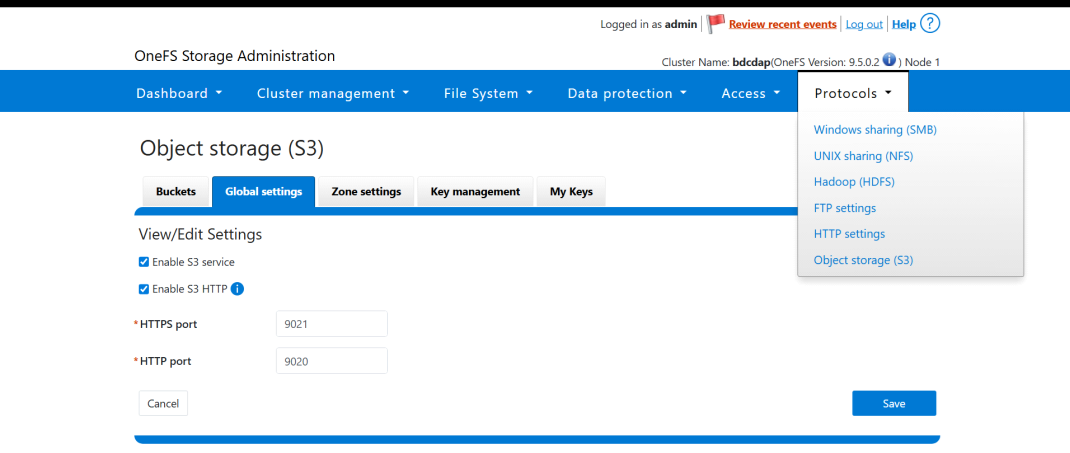
On the Object Storage (S3) page, click the Global Settings tab.
To enable the S3 bucket service, do the following:
Select the Enable S3 service checkbox.
Select the Enable S3 HTTP checkbox.
Set the HTTP port for S3 (default: 9020).
Click Save to apply the changes.
Obtain S3 Access ID and Secret Key
Log in to the PowerScale OneFS web interface.
Navigate to Protocol → Object storage (S3).
On the Object Storage (S3) page, click the My Keys tab.
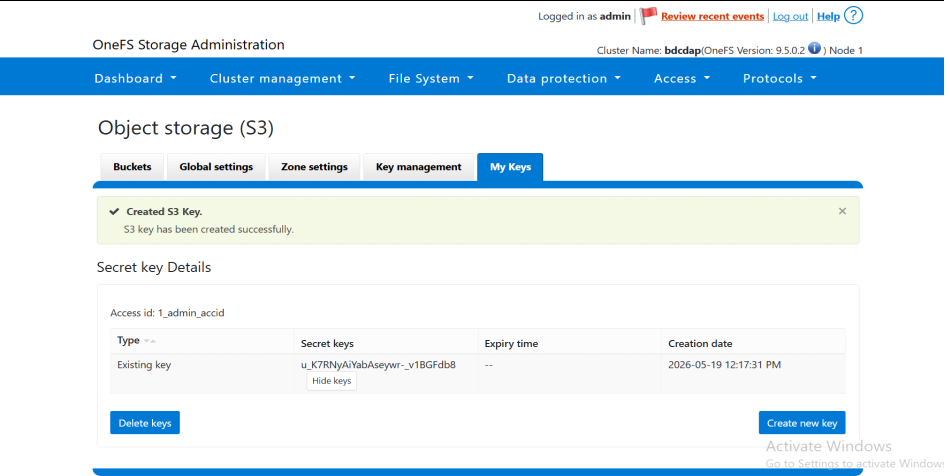
On the Secret key Details page, click Create new key.
Ensure to note the Access ID and Secret Key.
Warning
The S3 access ID and secret key are required during the OIM credential setup process.
Warning
Ensure to note down the S3 access ID and secret key as they are tightly associated with the S3 buckets. The cluster nodes cannot access the bootimages without these keys.
Configure storage_config.yml
Open the
storage_config.ymlfile available at/opt/omnia/input/project_default.Update the
s3_configurationssection with the following parameters. For detailed instructions on updating thestorage_config.ymlfile, refer to ../prepare_oim.s3_configurations: provider: "powerscale" endpoint_url: "http://<powerscale-ip>:<port>"
Replace
<powerscale-ip>with the actual PowerScale IP address and<port>with the S3 port (default: 9020).Sample:
s3_configurations:
  provider: "powerscale"
  endpoint_url: "http://192.168.1.100:9020"
Save the
storage_config.ymlfile.
Configure Credentials During Prepare OIM
When running the prepare_oim playbook, you will be prompted for S3 credentials:
Run the
prepare_oim.ymlplaybook as described in ../prepare_oim.When prompted, enter the S3 access ID and secret key obtained from PowerScale.
Note
For
powerscaleprovider, thes3_access_idis prompted as a conditional mandatory parameter.The
s3_secret_keyis always prompted during credential setup.
Verification
After successfully running the prepare_oim.yml, you can verify if the omnia.target and its dependent services are running correctly.
Run the following command to check the status of the OMNIA Core service:
systemctl status omnia_core.service
This command displays whether the
omnia_core.serviceis active, inactive, or has failed.Check the status of the PostgreSQL database container (if BuildStreaM is enabled).
systemctl status omnia_postgres.service
Check the status of the BuildStreaM API container (if BuildStreaM is enabled).
systemctl status omnia_build_stream.service
Check the status of the playbook watcher service (if BuildStreaM is enabled).
systemctl status playbook_watcher.service
To view the complete list of dependent services for the OMNIA target, run:
systemctl list-dependencies omnia.target
Review the status of the dependent services in the following tree output.
Note
The
prepare_oim.ymldeploys the following on the OIM node only when BuildStream is enabled on thebuild_stream_config.yml.PostgreSQL database container
BuildStreaM API container
Playbook watcher service
omnia.target
● ├─minio.service
● ├─omnia_auth.service
● ├─omnia_build_stream.service
● ├─omnia_core.service
● ├─omnia_postgres.service
● ├─playbook_watcher.service
● ├─pulp.service
● ├─registry.service
● ├─network-online.target
● │ └─NetworkManager-wait-online.service
● └─openchami.target
●   ├─acme-deploy.service
●   ├─acme-register.service
●   ├─bss-init.service
●   ├─bss.service
●   ├─cloud-init-server.service
●   ├─coresmd.service
●   ├─haproxy.service
●   ├─hydra-gen-jwks.service
●   ├─hydra-migrate.service
●   ├─hydra.service
●   ├─opaal-idp.service
●   ├─opaal.service
●   ├─openchami-cert-trust.service
●   ├─postgres.service
●   ├─smd.service
●   └─step-ca.service
A green circle indicates that the service is running.
A grey circle indicates that the service is not running.
A circle with a cross indicates that the service failed to start.
Note
The
omnia_auth.serviceruns only when OpenLDAP is specified in the/opt/omnia/input/project_default/software_config.json.Note
The
omnia_build_stream.service,omnia_postgres.service, andplaybook_watcher_servicerun only when BuildStreaM is enabled in the/opt/omnia/input/project_default/build_stream_config.yml.
If you have any feedback about Omnia documentation, please reach out at omnia.readme@dell.com.