Step 4: Deploy GitLab for BuildStream
Deploy GitLab as the CI/CD automation engine for BuildStream, providing a three-pipeline architecture for build, deploy, and cleanup operations. This procedure covers GitLab installation, project setup with pipeline configuration files, input folder structure, and runner verification.
BuildStream uses a three-pipeline architecture in GitLab:
Build Pipeline: Triggered by catalog changes, creates images and establishes Job ID to Image Group ID mapping. This pipeline can also be executed manually.
Deploy Pipeline: Triggered by PXE mapping changes, deploys images to cluster nodes. This pipeline can also be executed manually.
Cleanup Pipeline: Triggered manually, allows users to delete selected Image Groups.
Prerequisites
Before deploying GitLab for BuildStreaM:
Ensure that Omnia BuildStreaM container, PostgreSQL container, and Playbook Watcher service are deployed on the OIM node (see Step 3: Prepare the Omnia Infrastructure Manager)
The node where GitLab will be deployed must have Internet connectivity.
A dedicated node is required for BuildStreaM GitLab deployment.
The node must have sufficient system resources for BuildStreaM (minimum 4 GB RAM, 2 CPU cores, 20 GB free disk space)
GitLab requires a minimum of 2 CPU cores. More cores may be needed for production workloads.
OIM node must be accessible from the GitLab node.
Ensure that BuildStream API server (BuildStream container) is reachable from the GitLab node.
Ensure that appStream and Base OS repositories are configured and accessible from the GitLab node.
Ensure that on the GitLab node, SELinux is disabled.
Important
Omnia uses a dedicated GitLab instance for BuildStreaM. This procedure provisions a new GitLab instance specifically configured for BuildStreaM. Currently, existing GitLab setups configured for other purposes are not supported.
Procedure
Use SSH to connect to the
omnia_corecontainer.ssh omnia_coreNavigate to
/opt/omnia/input/project_default/gitlab_config.ymland update thegitlab_config.ymlfile. Use the gitlab configuration table for reference.cat /opt/omnia/input/project_default/gitlab_config.ymlNavigate to the GitLab directory.
cd /omnia/gitlab
Run the
gitlab.ymlplaybook:ansible-playbook gitlab.ymlWhen it prompts you to enter the GitLab password, enter the password. Note the password as it is required to access the GitLab project and instance.
Note
The installation may take 10-15 minutes to complete.
This gitlab.yml playbook performs the following tasks:
Installs the GitLab instance on the host specified in the
gitlab_config.ymlfile.In the GitLab instance, creates a project with the specified name, visibility, and default branch as configured in the
gitlab_config.ymlfile.Installs GitLab runner as a Podman container.
Generates a self-signed CA certificate for GitLab on the GitLab node at
/root/gitlab-certs/ca.crtAdds the project with the following files: - Pipeline Configuration Files:
.gitlab-ci.yml- Parent router pipeline that dispatches to child pipelines.gitlab-ci-build.yml- Build pipeline for creating images.gitlab-ci-deploy.yml- Deploy pipeline for deploying images to nodes.gitlab-ci-cleanup.yml- Cleanup pipeline for removing old Image Groups.gitlab-ci-deploy-child-template.yml- Dynamic child pipeline template for deploy operations
Catalog File: -
catalog_rhel.json- Default catalog file containing build definitions for RHEL imagesInput Folder: -
input/- Directory containing all BuildStream input configuration files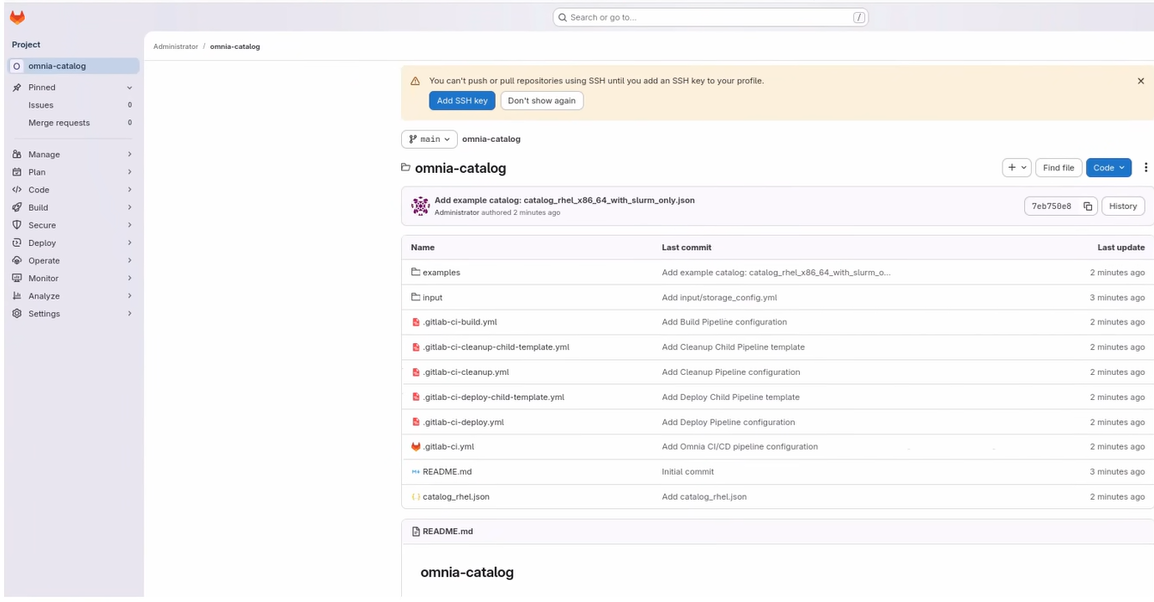
The input folder includes the following configuration files (see ../reference/configuration-tables for detailed parameter descriptions):
build_stream_config.yml— BuildStream configuration file
gitlab_config.yml— GitLab configuration file
high_availability_config.yml— High availability configuration file
local_repo_config.yml— Local repository configuration file
network_config.yml— Network configuration file
omnia_config.yml— Omnia configuration file
provision_config.yml— Provision configuration file
pxe_mapping_file.csv— PXE mapping file
security_config.yml— Security configuration file
storage_config.yml— Storage configuration file
telemetry_config.yml— Telemetry configuration file
telemetry_storage_config.yml— Telemetry storage configuration file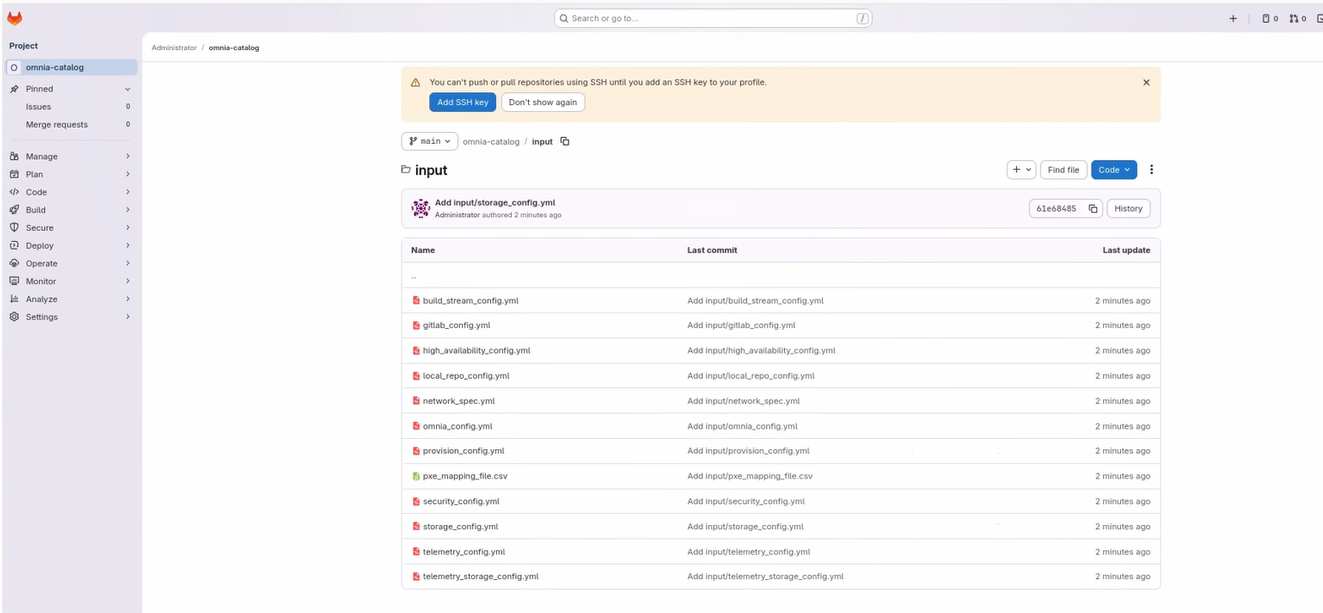
To avoid Not Secure warnings when accessing the GitLab instance, download and import the certificate generated in step 5 to the browser.
Verification
After the installation of GitLab complete, verify the following:
Verify you can access the GitLab project URL.
https://<gitlab_host>:<gitlab_https_port>/root/<gitlab_project_name>
Verify the project contains the expected files and folders.
Verify runner status through GitLab web interface:
Navigate to Settings → CI/CD.
Expand Runners section.
Verify the runner shows a green status indicator.
Confirm runner is set to Running Always with Podman Container.
Next Steps
After completing GitLab deployment, update the catalog file to automatically trigger the build pipeline. See Step 5: Execute Build Pipeline.
If you have any feedback about Omnia documentation, please reach out at omnia.readme@dell.com.