Step 6: Execute Deploy Pipeline
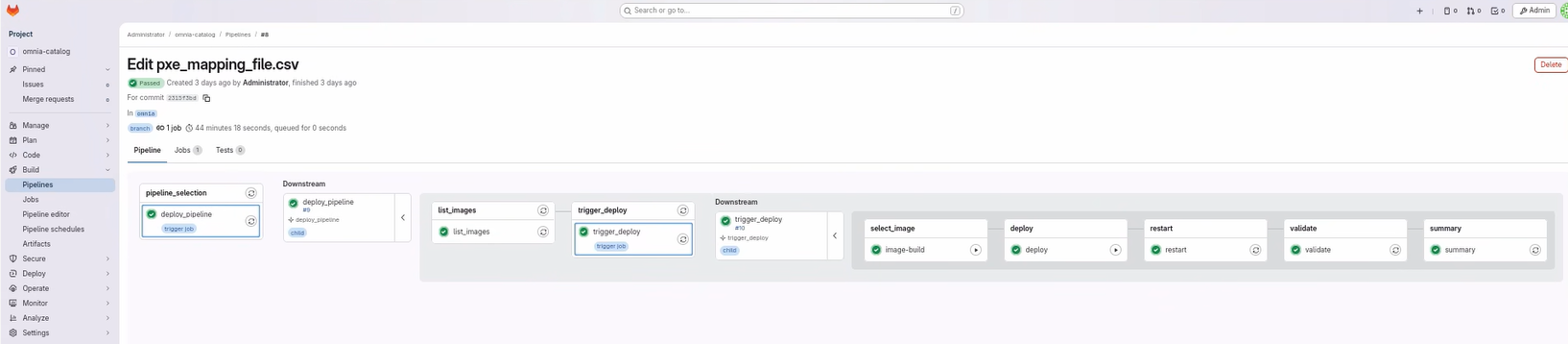
Execute the BuildStream deploy pipeline to deploy images to cluster nodes. This procedure covers the three deploy stages: deploy, restart, and validate.
The BuildStream deploy pipeline automates the deployment of built images to target cluster nodes. The pipeline consists of three sequential stages:
deploy: Deploys the built images to the target nodes
restart: PXE-boots the target nodes to load the deployed images
validate: Executes Molecule-based infrastructure tests to verify cluster deployment, network connectivity, and service health
The deploy pipeline is automatically triggered when you update the PXE mapping file (pxe_mapping_file.csv) in the GitLab repository, or can be manually initiated through the GitLab interface.
Note
Do not cancel a running GitLab pipeline or stage. Cancellation prevents some pipeline steps from executing, which leaves the BuildStreaM job in an intermediate, inconsistent state. Note that backend BuildStreaM tasks already in progress will continue running to completion regardless of the cancellation.
Prerequisites
Before executing the deploy pipeline, ensure the following:
Build pipeline has completed successfully and images are available
Target nodes are powered on and accessible via BMC
PXE mapping file (
pxe_mapping_file.csv) is correctly configured with target node informationPXE mapping file is present in the GitLab repository
input/folder for automatic triggering
Procedure
Navigate to the GitLab project URL:
https://<gitlab_host>:<gitlab_https_port>/root/<gitlab_project_name>
Trigger the deploy pipeline by updating the
pxe_mapping_file.csvfile in the GitLab repository and committing the changes. This pipeline can also be executed manually through the GitLab UI. See Execute Deploy Pipeline Manually for detailed instructions.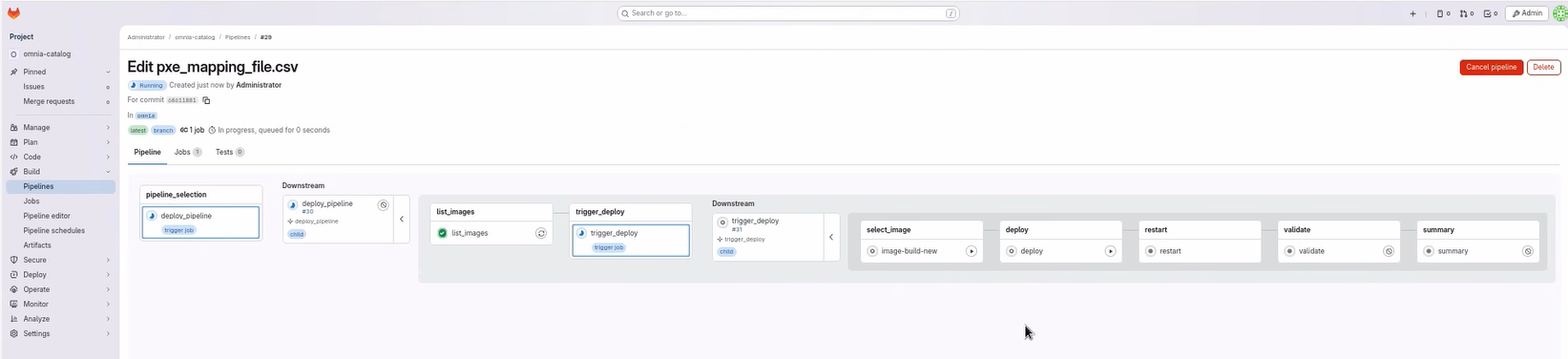
In the deploy pipeline, select the image from the
select_imagestage and click the “Play” button.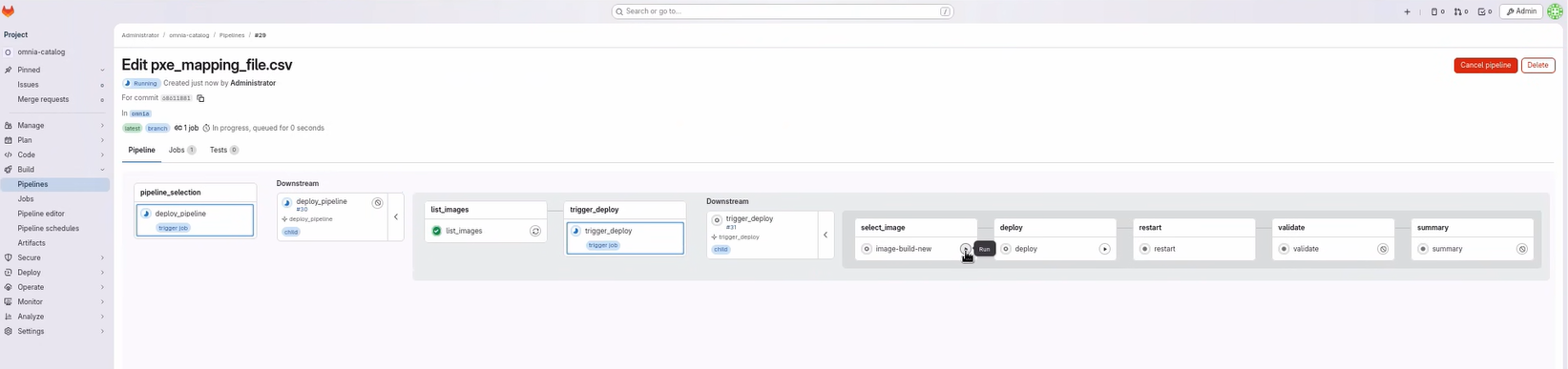
To deploy the image, click the “Play” button in the
deploystage.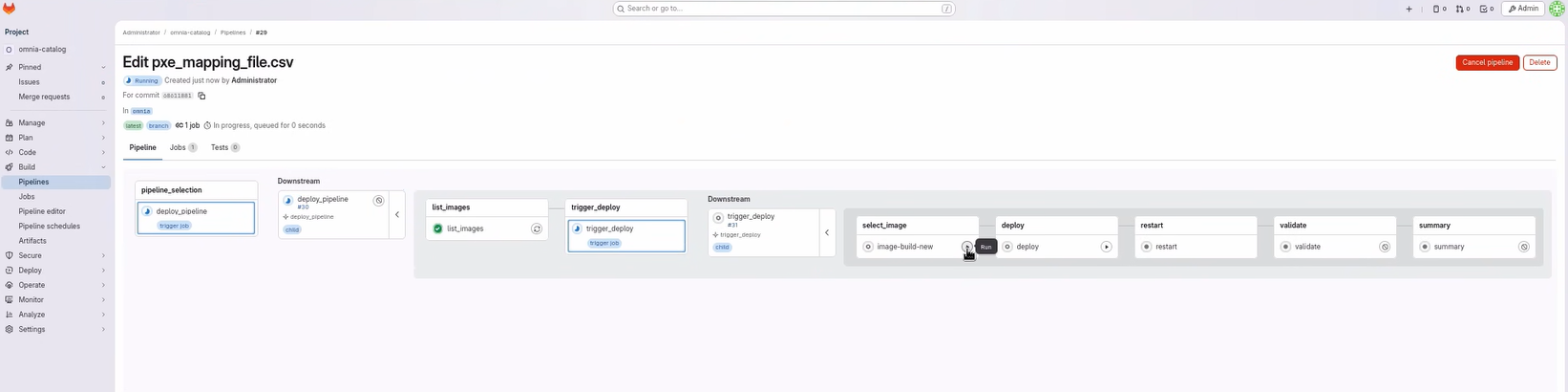
Monitor the pipeline progress to ensure it completes successfully. See Monitor Deploy Pipeline Progress for detailed instructions.
Execute Deploy Pipeline Manually
To manually execute the deploy pipeline, follow these steps:
Procedure
Review the pipeline logs in GitLab to check the current status.
Navigate to Deploy → Pipelines.
Click on the desired pipeline.
Click on the stage to view logs.
Update the input parameters in the GitLab repository.
Navigate to the
input/folder in the GitLab repository.Edit the relevant configuration file. For detailed parameter descriptions, see ../reference/configuration-tables.
Commit and push the changes.
Manually trigger the pipeline with the updated parameters.
Navigate to Deploy → Pipelines.
Click New Pipeline.
In the Run new pipeline dialog box, enter the variable name as PIPELINE_TYPE and enter the value as deploy.
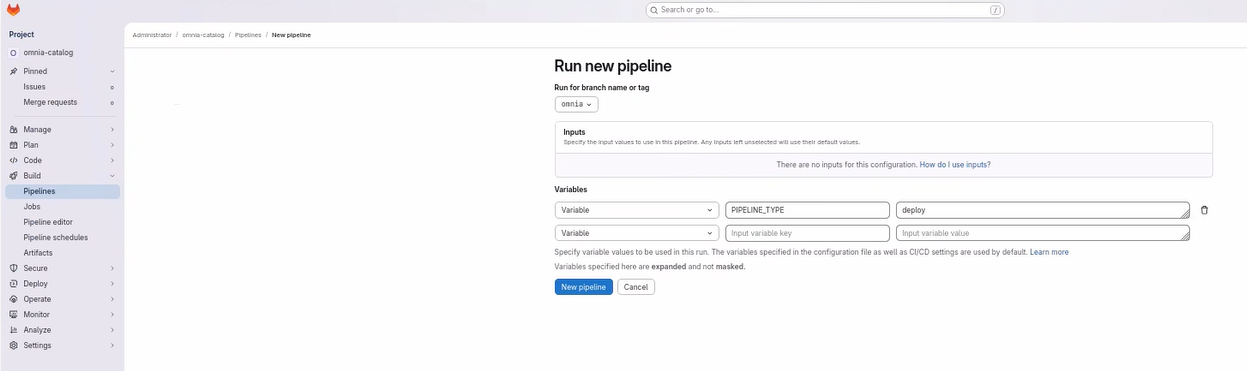
Click Run Pipeline to execute the deploy pipeline.
Monitor the pipeline progress to ensure it completes successfully. See Monitor Deploy Pipeline Progress for detailed instructions.
Note
When using manual retry, ensure that only the necessary parameters are updated. Unnecessary changes may cause additional pipeline failures.
For information on handling deploy failures with partial node failures, see Handling Deploy Failures.
Monitor Deploy Pipeline Progress
Monitor the deploy pipeline progress through the GitLab web interface:
Click on the running pipeline to view details.
Monitor each stage as it progresses:
deploy: Deploys images to target nodes based on catalog specifications
restart: PXE-boots the nodes to load the deployed images.
validate: Executes Molecule-based infrastructure tests to verify cluster deployment, network connectivity, and service health
- Review the stage status indicators:
 Green checkmark: Stage completed successfully
 Red X: Stage failed (click for error details)
 Blue circle: Stage currently running
If any stage fails, review the error logs by clicking on the failed job.
Note
The deploy pipeline uses the PXE mapping file to determine which nodes receive which images based on functional group assignments.
Verification
After the deploy pipeline completes, verify the deployment:
Check the overall pipeline status in GitLab to ensure all stages passed.
Verify that the target nodes have restarted and are accessible.
Log in to a sample of deployed nodes to verify the correct image is loaded.
Check the BuildStreaM API for deployment status and image group information.
Handling Deploy Failures During Restart Stage (PXE Boot)
In the deploy pipeline, when the restart stage encounters partial failures (some nodes PXE booted successfully while others fail), BuildStream provides a failed_nodes.json mechanism to enable efficient retry operations.
failed_nodes.json is a structured JSON file that tracks which nodes failed to PXE boot during the restart stage. This file enables you to:
Track failed nodes with detailed error messages
Manually fix the failed nodes and update their entries as successful.
Retry only the failed nodes instead of the entire inventory
Maintain accurate state across pipeline runs
Sample failed_nodes.json Schema
{
  "job_id": "018f3c4b-7b5b-7a9d-b6c4-9f3b4f9b2c10",
  "stage_name": "restart",
  "timestamp": "2026-04-10T16:32:15Z",
  "total_nodes": 5,
  "failure_count": 2,
  "failed_nodes": [
    {
      "bmc_ip": "172.17.107.44",
      "hostname": "slurm-node2",
      "service_tag": "79WWJ93",
      "status": "failed",
      "message": "Failed. iDRAC is not ready. Retry again after iDRAC is ready"
    },
    {
      "bmc_ip": "172.17.107.45",
      "hostname": "slurm-node3",
      "service_tag": "79WWJ94",
      "status": "failed",
      "message": "iDRAC is unreachable. pxe boot might be set. Please check the host reboot status manually"
    }
  ]
}
Procedure
During the first run, the restart stage attempts to PXE boot all nodes automatically.
If all nodes succeed, the stage is marked successful and proceeds to the validation stage.
In case of partial failure, only failed nodes are recorded in
failed_nodes.jsonin a directory calledmiscellaneousin GitLab. The file contains failed node details along with corresponding error messages.
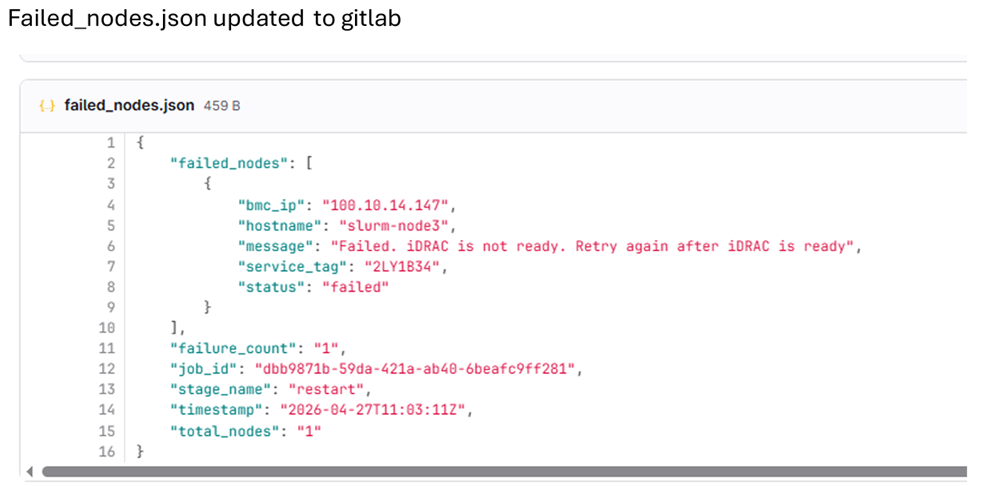
Analyze failures and perform corrective actions:
Check iDRAC readiness
Verify BMC network connectivity
Validate PXE boot configuration
After resolving issues, retry the restart stage for failed nodes.
If automated retry is not feasible (for example, VM or manual dependency), manually PXE boot the affected nodes.
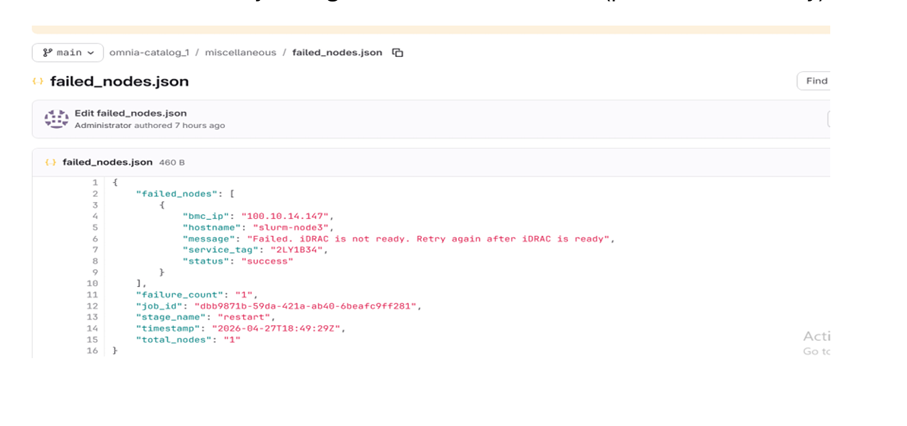
After manual boot of the nodes, update the node status as
successinfailed_nodes.jsonand click the Retry donwstream pipline icon to retry the failed pipeline. Updated nodes are excluded from further PXE attempts by the pipeline/API and are automatically added to the booted nodes list.
The restart stage completes successfully only when all nodes are successful (automated or manual). Upon completion, the workflow proceeds to the validation stage.
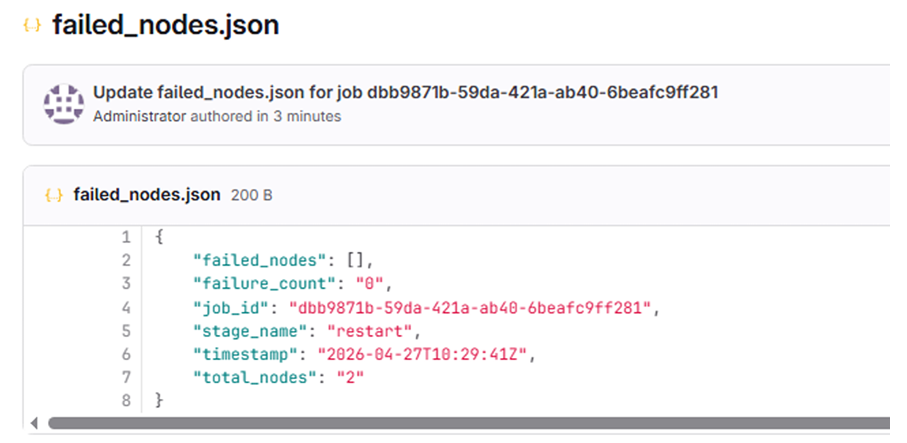
To view detailed logs for a validate stage, click on the Validate stage in the pipeline. This will display the execution logs, including whether the stage has passed or failed. Within these logs, the corresponding log file path is provided. Users can navigate to this path on the OIM to access the detailed test report of the cluster deployment. If any failure occurs, the logs will include a comprehensive report for further analysis and debugging.
Adding New Nodes to the Cluster
This procedure describes how to deploy images on the new nodes without affecting previously provisioned nodes.
Update the
pxe_mappingfile with the details of the new nodes to be added in GitLab.Run the deploy pipeline by selecting the image required.
The system will PXE boot only the newly added nodes, without impacting previously successful nodes.
For troubleshooting common pipeline issues, see Troubleshooting BuildStreaM Pipeline Issues.
If you have any feedback about Omnia documentation, please reach out at omnia.readme@dell.com.