Troubleshooting guide
Checking and updating encrypted parameters
Move to the file path where the parameters are saved (as an example, we will be using
omnia_config_credentials.yml):cd /opt/omnia/input/project_default/
To view the encrypted parameters:
ansible-vault view omnia_config_credentials.yml --vault-password-file .omnia_config_credentials_key
To edit the encrypted parameters:
ansible-vault edit omnia_config_credentials.yml --vault-password-file .omnia_config_credentials_key
Checking podman container status from the OIM
Use this command to get a list of all running podman conatiners:
podman psCheck the status of any specific podman conatiner:
podman ps -f name=<container_name>
Packages download issues during local_repo.yml playbook execution
The
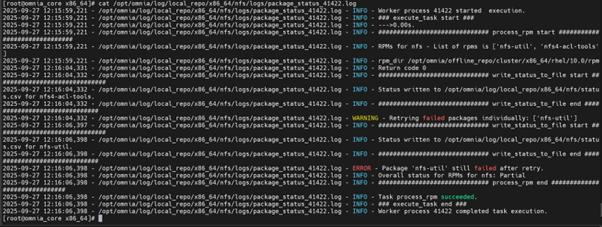
local_repo.ymlplaybook generates and provides log files as part of its execution. For example, if the local repository is partially unsuccessful for nfs, analyze the issue using the following steps:
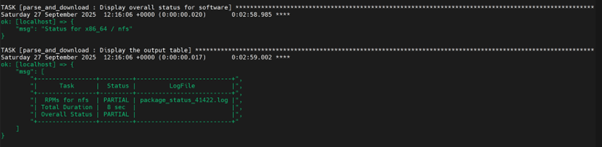
To view the overall download status of all softwares in the .csv format, run the following command:
opt/omnia/log/local_repo/<arch>/software.csv
Example:
/opt/omnia/log/local_repo/x86_64/software.csv
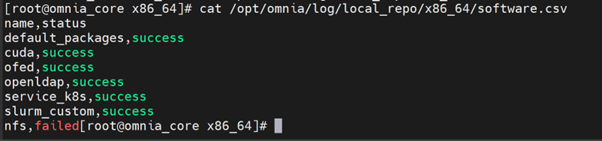
To view the overall download status of all packages and the log filenames for a specific software, run the following command:
/opt/omnia/log/local_repo/<sw>_task_results.log
Example: For nfs:
/opt/omnia/log/local_repo/x86_64/nfs_task_results.log

To view the package level status, run the following command:
/opt/omnia/log/local_repo/x86_64/<sw>/status.csv
Example:
/opt/omnia/log/local_repo/x86_64/nfs/status.csv

To view the issues information and the reason for job being unsuccessful, see the
package_status_<pid>.logfile mentioned in the<sw>_task_result.log.
Example:
/opt/omnia/log/local_repo/x86_64/nfs/logs/package_status_41422.log
Troubleshooting logs
For more information, see Logs.
Troubleshooting CoreDNS pod in pending state
When you run the omnia.yml or service_k8s_cluster.yml files, sometimes one of the CoreDNS pods remains in the pending state after the Kubernetes installation. This issue is caused by the dns-autoscaler adjusting the CoreDNS replica counts based on the total number of CPU cores across all the cluster nodes. In some environments, this scaling calculation can lead to an unsupported replica count, resulting in pending pods.
Resolution: Do the following:
Retrieve all the deployments using the following command:
kubectl get deployments -A
Delete the dns-autoscaler deployment:
kubectl delete deployment dns-autoscaler -n kube-system
Identify and edit the CoreDNS deployment name from the list of deployments retrieved in step 1:
kubectl edit deployment <coredns-deployment-name> -n kube-system:
Locate the ‘replicas’ field in the editor and change the value to the number of kube controller nodes.
Save the changes. Kubernetes automatically restarts the CoreDNS deployment.
Wait a few minutes for the pods to restart and verify the CoreDNS status:
kubectl get pods -A
Ensure that the CoreDNS pods are in the ‘Running’ state.
Ensure that you rerun the playbook.
If you have any feedback about Omnia documentation, please reach out at omnia.readme@dell.com.